Pages

Showing posts with label Ubuntu. Show all posts

Saturday, October 29, 2011

Quick Terminal in Ubuntu Oneiric

If you've tried to open the terminal using alt+F2 in the new Ubuntu (Oneiric), it probably didn't work.  That's because it has a new shortcut: Alt+Ctl+T.

I'm sure it's a fine shortcut, but it's hard to reverse years of habit.  Feel the same?

It's easy to switch back.  Go to:

System Settings > Keyboard > Launchers.
Select Launch Terminal.
Press Backspace to clear Alt+Ctl+T,
Then press Alt+F2.  

You're done.

Supposedly, you can skip the step of clearing the old shortcut and just hold down the new one for a moment to replace it.  Didn't work for me.


Tuesday, June 07, 2011

The truth of the kernel

For various reasons I sometimes have to know what Linux kernel I'm using with Ubuntu.  It's easy, but I always forget how, so this is as much for my own use as anything else:

To find your current Linux kernel, at the command prompt:
uname -r (quick, short reply)
uname -a (same with a little more information)
The difference between those two is that -r just tells you the version of the Linux kernel.
l@l:~$ uname -r
2.6.32-21-generic
That's pretty straightforward.  The first two numbers, in this case the 2 and the 6, are major and minor releases.  The third number, 32, is the version.  The fourth number, 21, reflects the back-ports that are incorporated into the kernel.

An rc.x at the end means the version is a release candidate, the last revisions before a version is ready for use.

If you're curious, you can browse through the history of Linux 2.6.x.  Or back to the very beginning.  If you want to how Linux kernel numbering has changed over the years and why it changed, you can read the history, complete with primary documents.

Chances are, you're using an operating system that makes use of the Linux kernel, like Ubuntu, Red Hat, Open SUSE and so forth.  These are sometimes called "flavors" of Linux.  Frankly, I find they all taste the same, but they look and operate a little differently.

By using -a, you'll get a response like this:

l@l:~$ uname -a
Linux l 2.6.32-21-generic #32-Ubuntu SMP Fri Apr 16 08:09:38 UTC 2010 x86_64 GNU/Linux


Another way to get information about your kernel is by looking at the /proc file.  The command is:
cat /proc/version
The result, will look like this:

l@l:~$ cat /proc/version
Linux version 2.6.32-21-generic (buildd@yellow) (gcc version 4.4.3 (Ubuntu 4.4.3-4ubuntu5) ) #32-Ubuntu SMP Fri Apr 16 08:09:38 UTC 2010
What does it all mean?  
  • Linux version 2.6.32-21-generic The complete Linux version.
  • (buildd@yellow) The username and host name of the person who compiled the kernel.  Thanks buildb, home everything's going well at yellow.
  • (gcc version 4.4.3 (Ubuntu 4.4.3-4ubuntu5) ) The version of the compiler buildb used.
  • #32-Ubuntu SMP The type of the kernel (SMP means Symmetric Multi-Processing, which means the kernel makes use of multi-core processing)
  • Fri Apr 16 08:09:38 UTC 2010 The time and day that the kernel was compiled.

Tuesday, May 24, 2011

Installing Gimp Plugins

If you ever want to install plugins for The Gimp, the image editing app, you'll have to first install the gimp-dev and glib-dev packages.  It's easy.  You can use the Synaptic Package Manager or apt-get.  But the names are tricky.  Instead of gimp-dev and glib-dev, they're called:

  • libgimp2.0-dev
  • libglib2.0-dev

Monday, March 14, 2011

Setting mailto: in Chrome and Ubuntu

I must have had an extension that made Gmail the mailto: app in Chrome. Mailto: is what automatically opens up a new email message when you click on an email address, helpfully inserting the address as the recipient.  After cleaning out some extensions I didn't think I used, mailto: stopped working.

No problem. Ubuntu has a convenient way to make mailto: work. It's called Desktop Webmail.

Applications > Internet > Desktop Webmail

That gets you a dropdown menu from which you can pick the webmail you use, like Gmail, Yahoo, etc.

Check Gmail (or whichever service you use) and clicking on an email link will open your mail service to a new message addressed to the address you clicked.

I'd show you a picture of the dropdown menu, but I can't. Below the dropdown menu there was a cryptic checkbox labelled simply "Ask again." I didn't know what it meant, but assumed it had something to do with asking which webmail service I wanted to use each time I clicked on an email address. I unchecked the box.

Now when I go to Applications > Internet > Desktop Webmail it opens Gmail instead of opening the menu. Apparently "Ask again" meant giving me the option of changing my default webmail service. Oh well.

Incidentally, if you don't see Desktop Webmail among your applications, you can install it from the repository or with:
sudo apt-get install desktop-webmail

Wednesday, February 16, 2011

Stop that!

Sometimes it seems easier to start something from the command line than to stop it.  Ping, for instance.

To stop whatever you're running in the terminal, type:

Ctrl+c

That's it.

If the issue happens to be ping, you can do it preemptively, by limiting the number of pings.  Just use this command:

ping -c [number of pings you want]
as in:
ping -c 7 www.google.com

Friday, September 10, 2010

The truth of the kernel

Sometimes you have to know what Linux kernel you're using with your operating system, like Ubuntu.  It's easy, but I always forget how, so this is as much for my own use as anything else:

To find your current Linux kernel, at the command prompt:
uname -r (quick, short reply)
uname -a (same with a little more information)
The difference between those two is that -r just tells you the version of the Linux kernel.
l@l:~$ uname -r
2.6.32-21-generic
That's pretty straightforward.  The first two numbers, in this case the 2 and the 6, are major and minor releases.  The third number, 32, is the version.  The fourth number, 21, reflects the back-ports that are incorporated into the kernel.

An rc.x at the end means the version is a release candidate, the last revisions before a version is ready for use.

If you're curious, you can browse through the history of Linux 2.6.x.  Or back to the very beginning.  If you want to how Linux kernel numbering has changed over the years and why it changed, you can read the history, complete with primary documents.

Chances are, you're using an operating system that makes use of the Linux kernel, like Ubuntu, Red Hat, Open SUSE and so forth.  These are sometimes called "flavors" of Linux.  Frankly, I find they all taste the same, but they look and operate a little differently.

By using -a, you'll get a response like this:

l@l:~$ uname -a
Linux l 2.6.32-21-generic #32-Ubuntu SMP Fri Apr 16 08:09:38 UTC 2010 x86_64 GNU/Linux
That tells us that the machine is running Linux, the machine name is "l" and the Linux version is 2.6.32-21-generic.

I have no idea what the #32 means.  If you do, please let me know.

Ubuntu is the operating system and SMP means it uses the multiple cores of the processor.

The date is when the kernel was built.  The x86_64 means it's a 64-bit processor in the X86 family.  GNU/Linux is, by some accounts, the full name of the Linux core.

Another way to get information about your kernel is by looking at the /proc file.  The command is:
cat /proc/version
The result, will look like this:

l@l:~$ cat /proc/version
Linux version 2.6.32-21-generic (buildd@yellow) (gcc version 4.4.3 (Ubuntu 4.4.3-4ubuntu5) ) #32-Ubuntu SMP Fri Apr 16 08:09:38 UTC 2010
What does it all mean?  
  • Linux version 2.6.32-21-generic The complete Linux version.
  • (buildd@yellow) The username and host name of the person who compiled the kernel.  Thanks buildb, home everything's going well at yellow.
  • (gcc version 4.4.3 (Ubuntu 4.4.3-4ubuntu5) ) The version of the compiler buildb used.
  • #32-Ubuntu SMP The type of the kernel (SMP means Symmetric Multi-Processing, which means the kernel makes use of multi-core processing)
  • Fri Apr 16 08:09:38 UTC 2010 The time and day that the kernel was compiled.

Wednesday, July 21, 2010

The easy (easiest?) way to sign pdf documents

PDF documents are a pain in the butt if you're trying to eliminate paper and work electronically.  They're hard to edit unless you want to spend a bundle on the official Adobe program, and I'm way to cheap for that.

Okular works well for adding annotations, but it doesn't help at all for adding a signature to PDF docs.  For that you have to be able to either draw a random line (your signature) or insert an image (of your signature).

Why do it?
Why would I want to electronically insert my signature into a PDF doc?

Well, to sign it of course.  Let's say I have to transfer money from my bank account.  They won't let me do that online; for security they want a hard copy of a signed authorization form.

The bank wants to fax it to me, have me sign it, and fax it back.

Here's the catch: my fax machine is buried in a landfill somewhere, a layer above my old dot-matrix printer and a couple layers below my external ZIP Drive.

Sure, I could receive the fax into my computer (or get it my email), print it out, sign it, scan it back into my computer, then email or fax it back.  But there are some problems with that.

First, it wastes paper.  Second, it's not elegant.  Third, it violates the basic principle of Hopeful Hacking, which is that if you expend enough time and effort experimenting, you can always find a better (or at least different) way of doing things.

Back from the digression
Here's another option.  To do it, you have to have a graphics editing program called GIMP.  It's in the Ubuntu repositories, so you can added it with Synaptic or by typing
sudo apt-get install GIMP
at the command line.   (It's available for Windows as well as Linux).

GIMP used to come with Ubuntu, but as the developers added more abilities, the folks at Ubuntu decided it had become more than the basic functionality they like to include with the base install.  I'm sure it also added to the difficulty of fitting the Ubuntu installation on a single CD.

All that functionality is great, but it's specifically not the point of this post.  The point here is to use GIMP to do just one thing: add your signature to PDFs.


Opening GIMP gives you three windows: the main editing window (in the middle), the Toolbox (on the left) and the Layers, Channels, etc window (on the right).

If, for some reason, they're not open, you can use CTRL+T to open the Toolbox and CTRL+L to open the layers window.

You can clear clutter by closing any other windows that happen to open.

Your Signature
First, you have to create an electronic image of your signature.  We're going to do it entirely on the computer.

Another option would be to sign a blank piece of paper, then scan it into your computer.
In the main window, click
File > New
You'll get the Create a New Image dialog box.

Click on the Template dropdown menu and select US-Letter (300ppi), then click the + sign by Advanced Options.

Click the Fill With dropdown menu and choose Transparency.  This is critical.  If you don't use a transparent background, your signature will mess up the document you're trying to sign.


Click OK and you should get a blank image with a transparent background.  GIMP uses a light and dark gray checkerboard pattern to indicate transparency.

At the bottom left of the main editing window you can adjust the size of the image.  I chose 25%, but you can pick whatever you want as long as it's big enough to sign your name and not so big that you have to scroll to see it all.


To get ready for signing your name, go over to the Toolbox window.


Click on the icon for Pencil Tool.


Below the tool icons there are some options for the Pencil Tool.  Normal mode is fine.  Opacity should be 100%.   Brush sets the size of the line you'll be drawing.  I think Circle (11) works pretty well.  You can experiment.  Scale starts at 1.  You can move the slider to make the line thicker or thinner.

Just remember that you should judge by the way it looks in the final document, not the way it looks now.
Now you draw your signature.  This can be the hardest part of the whole process.

I used the mouse.  You just hold down the left mouse button and write.  When you release the button, the writing stops.  Press it again to start writing again.

You can hit CTRL+Z to erase the last thing you wrote and try again.

After using CTRL+Z a couple of dozen times, you might start wondering if there's a better way.
Well, sure there is.

You could write on a piece of paper and scan it, as I mentioned earlier.

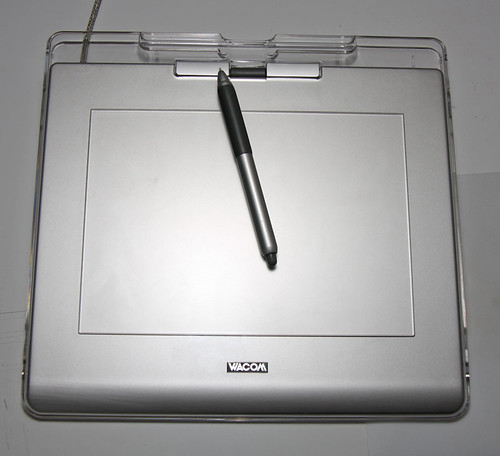
Another option is to get a graphics tablet.  I have an old WACOM Graphire that connects through a USB port.

It works great but, frankly, I wouldn't buy one just for this.  With a little practice you can get a pretty good signature using your mouse, or even a touchpad.


OK, maybe not the touchpad so much.  That's what I used to copy John Hancock's signature here.
If anyone ever accuses me of forging a copy of the Declaration of Independence, this should clear me.

Once your satisfied with your signature, or at least tired of working on it, you just have to save it properly.

First, we should get it down to a reasonable size.  That US-Letter size image space made plenty of room for writing, but it's a lot bigger than necessary.

Go back over to the Toolbox and select the Rectangle Select Tool.


It's a little rectangle icon at the upper left.

Now you draw a rectangle around your signature.  Pick the part that sticks out the farthest and put the cursor just beyond the line.  Left click the mouse and move the cursor toward what will be the opposite corner of your selected rectangle.  Then release the mouse button.

The result should look like this.


With the signature selected, go to the menu bar and select
Image > Crop to Selection


At this point, you could make a decision.  But I suggest you don't.  If you've followed these instructions as meticulously as I know you have, your signature is going to be pretty doggone big compared to the document you'll be signing.  Unless you really are forging the Declaration of Independence.

You could go back up to the Image menu, choose Scale Image and shrink it down to a more reasonable size.  It would actually save you a bit of trouble later, but it could also cause you problems later.

For the moment, I suggest you leave the size alone, (which is what you probably would have done if I hadn't brought this issue up).  On second thought, forget I mentioned this.

You'll want to save the image as a PNG file.  They compress nicely, they're versatile but, most important for this exercise, they save transparency.  JPEGs don't do that.

Oh, GIMP actually has it's own file format that makes it easy to make adjustments later.  It's .xcf.  That's dot-xcf and then a period that's not related to the file extension.

If you want to save the file that way first, it will make it easier to come back and adjust your signature later if you want.

In any case, for what we're doing, you'll need a png file.  Select
File > Save
In the Save Image dialog box, choose a name like signature.png (for now, you can change it to xpdjf.dtr later for security).


This is the end of Part 1.  You only have to do this part once, providing you don't give the file a random name and store it in an obscure place and lose it forever.

Is it safe?
OK, you may also be wondering if it's secure to store a digital image of your signature on your computer.

I don't know.  I guess it's as secure as a lot of other things.  Now that you have a nice digital image of your signature, I wouldn't suggest posting it on Flickr, no matter how elegant it is.  That would be asking for trouble.  


Emailing it doesn't seem less secure than faxing, or snail mailing.  People send faxes to wrong numbers all the time.  Someone could intercept a bill payment in the mail.  How hard would it be for someone to cut your signature out of something and scan it themselves?

Someone could hack into your computer and steal the image.  But once they're in your computer there's probably a lot of things they could do to make you miserable.  If you're worried about it, give the file a name like expidff.conf and save it to /proc/1415.   I've done that with files and never found them again myself.


Adding your signature to the PDF doc
Now we're getting somewhere.

In the main GIMP window choose
File > Open
and select the PDF file you want to sign.  I'm using one called lease.pdf.


Instead of popping right open, you get an Import from PDF dialog box because GIMP can't open PDFs directly.

Select the page or pages you want, then click Import.


When it opens, scroll down to the place you need to sign.  Remember that you can adjust the view size at the bottom left of the window.

Now go back up to the top and choose
File > Open as Layers


Choose your signature image file and open it.

You may not see it very well in the edit window; it's going to be huge and may be at the edge of the window.

You will see it in the Layers window.


It will be right above the imported PDF image which will be named something like "1".

It helps here to know just a bit about how GIMP works.  It builds images from independent layers.  You can add layers, delete layers, edit layers, move layers up and down and a lot more.

In this case, you're only going to have two layers: the imported PDF file and the signature.  Make sure the signature layer stays on top of the PDF doc layer.  Literally.  As long as it's above the PDF doc layer in the Layers window, it will be above the PDF doc in the edit window.  If it somehow moves below the PDF doc layer, you won't see it in the editing window.

The first thing we're going to do is make you signature a more reasonable size.  With it's layer highlighted in the Layers window, move back over to the editing window.  Select
Layer > Scale Layer


In the dialog box that opens, enter 250 into the Width box.  It's just a guess, you can adjust it later.


Click Scale.

(By default the Width and Height boxes are linked -- as indicate by a little chain link image to the right of the boxes.  When you entered 250 and hit Tab, it should have automatically changed the Height number to preserve the aspect ratio of the signature image.  If it didn't, your signature will be really tall and narrow.  If that happens, hit CTRL+Z to undo the scaling.  Once the layer is back to its original size, reopen the Scale Image dialog box and click on the little chain image.  That should change it from an unlinked chain to a linked chain.   Then just reenter the width).

Now go over to the Toolbox and select the Move Tool.  It looks like a plus sign with arrows at the end of the lines.


Lower down in the Toolbox, select Move the active layer.

Now put your cursor on the signature layer, hold down the left mouse button and draf the signature to the right place on the PDF doc.


There you go.  You can adjust the position or the scale to make it look right.
To add the date (there's always a date), go back to the Toolbox and click on the Text Tool icon.


Put your cursor where you want to start the date and left click the mouse.  The GIMP Test Editor box will open.  Enter the date and click Close.


If it's not in the right spot, you can move it.  It's another layer.  Click on it in the Layers window, choose the Move Tool again and put it in the right spot.

Now all you have to do is create the final, signed PDF document.
Go to
File > Print


Instead of selecting a printer, select Print to File.


Enter a file name, choose a folder to store it in and for Output format select PDF.  Click on Print and your done.

When you open the new PDF document it should be the original plus your signature and the date.

Monday, May 03, 2010

What's inside a Sony Vaio VPCS111FM

I've got Ubuntu up and running on my new VAIO VPCS111FM (love those Sony model numbers).  It's time to start tweaking and for that, I need to know what parts are inside the box.

Here's the short list (from lshw):

Wednesday, October 07, 2009

Trying AIR Again

OK, so it seemed like it was easy to install AIR, but after installing one application I couldn't get it to install  others.

Turns out I used the right process for 32-bit processors, but I'm using a 64-bit processor.  Getting AIR to work with a 64-bit system takes a little more work.

Fortunately, I found some help at OSSRemblings.  It's actually step-by-step instructions for installing an AIR app called TweetDeck, but it starts with all the steps to install AIR on 64-bit Linux systems.

I'm planing to install TweetDeck anyway.
Reblog this post [with Zemanta]

Wednesday, September 02, 2009

What's inside your computer? Find out with Ubuntu

Ever wonder what, exactly, is inside your computer? The specific network card? The type of host controller?

Finding out isn't always just curiosity; getting the details of your computers innards can help you get the right drivers and tweak the hardware for peak performance.

In Ubuntu (or any flavor of Linux), there's an easy way to get the scoop. It's a terminal command called lshw or a graphical program called lshw-gtk.

If you don't have them installed, you can them quickly with Synaptic, or with the terminal commands:
sudo apt-get install lshw
sudo apt-get install lshw-gtk
Once you've installed them, you can open either from the terminal:
sudo lshw
or
gksudo lshw-gtk
Use sudo (or gksudo) because you need root privileges to get all of the information.

For a quick look, the command-line version is a little easier. The lshw commans gives you the full story, every device, model and setup.

If you'd prefer a summary, use:
sudo lshw -short
It's a little easier to digest. There are some other options at the end of the post.

The graphical program is nice, but it takes a little getting used to. When you first run it, it will open with just one description. In my case, it said "Notebook" in the left column and had a brief (really brief) description in the right-most column.

To get more information, look for little arrows and words in boldface. Double clicking on them opens up more details. When the words are in regular type, you've hit the last level of detail. Just click on the words to get the full description.

I copied the output of lshw into Tomboy and created a little wiki with all of the hardware information. Now when I need some details, I can just click through the notes.

With the command-line version, you can tailor the output to fit your needs.

Monday, August 03, 2009

Working with PDF documents in Ubuntu

PDF files can be a pain in the butt. The format is fantastic for keeping the layout of a page together, but irritating if you want to search the document, copy text or read on a small screen (especially a smartphone like the Nexus One).

There are a few Linux tools that can make working with PDFs a little easier.

Ubuntu comes with Evince, which it simply calls "Document Viewer." It doesn't by default show up in the Applications menu; it just opens when you double click on a pdf file. (If you want to open it without clicking on a pdf, just open application launcher (Alt-F2), type "evince" without the quotes, and click Run).

Evince is quick and it lets you search, print and copy from a pdf document, but its copy function has some limitations.

To copy, you highlight text line by line. That's fine for simple documents, but it can cause problems if the document has columns or other odd formatting.

Rather than just getting the lines from one column, you'll often also get the adjacent lines from the next column. Sometimes you'll get lines from an entirely different part of the document (I assume that has something to do with the way the pdf was created).

The great thing about Linux is that you have options to make working with pdf files easier.

Sunday, February 22, 2009

GMail All the Time

Now you can work on your Gmail anytime you have your computer. Google Gears makes it possible. It let you run Gmail in your browser even when you're offline, then it catches up your account the next time you're online.

It even has a "Flaky Connection Mode" that lets you use Gmail when your link to the Internet is, well, flaky. I haven't tried it yet, but it sounds useful.

Offline Gmail with Firefox 32-bit
If you're running Firefox on a 32-bit machine, it's simple:

  • Open your Gmail account
  • Click on Labs (It's the green flask in the upper right corner)
  • Enable Offline

When you save the setting, you'll get a couple of boxes with setup information, then Gears will start downloading your messages to your new offline browser.
Link
Offline Gmail with Firefox 64-bit
If you use the 64-bit version of Firefox, it's a little more complicated. There's no 64-bit Linux version of Gears yet -- at least not officially.

But a guy named Niels (a Dutch techie in China) has compiled a 64-bit version and built a .deb package for Intrepid (Ubuntu 8.10). He's put it online for all of us, and it works great.

Just go to his blog, click on the link to the xpi file, and it will start installing into Firefox just like any other extension. Then when you go into labs (same way as explained above) and enable offline, the stetup process will start.

Tip
Once you set up offline, Gmail will download a lot of your email. It can take a while -- about 20 minutes for me with a lot of message and a pretty fast connection. Even if you're anxious to try it, you might waint until your on a solid connection with time to wait.

Sunday, October 05, 2008

Ubuntu Keyboard Problem

Lost the use of my Shift keys -- both of them. The odd thing is that Caps Lock still worked fine. Turned out to be a Compiz issue. Went to:
System > Preferences > Appearance > Visual Effects
Selected "None" and both Shift keys started working again. (Notice the appropriate use of capital letters). It's not an elegant solution because I'm living without Compiz (but surviving). If you'd like to keep Compiz and the use of your Shift keys, take a look at this. I haven't tried it yet.

If neither of those things work, you can try this.

Saturday, October 04, 2008

No Room to Move

Here's a strange problem. I moved the panel that I usually have at the top of my screen to the left side of the screen and couldn't move it back. The panel is the bar across the top (or wherever) that holds menus, icons, the date, etc. Moving it panel is usually easy. So easy that I moved it by accident. You just grab an empty spot on the panel and drag it to where you want it. If you can.

With the panel on the left side of the screen there wasn't enough room for all of the items I have on it. Some of the icons disappeared. It turned out they were just so scrunched up that they overlapped. I click on Applications to get the drop down menu and Firefox opened. Turns out the Firefox icon was under the "cati" of Applications. Tomboy was under the "A" and OpenOffice was in between. To get the drop-down menu I had to click on the very end of the word. More amusing than irritating, until I tried to move the panel back to the top of the screen.

There was no empty space on the panel to grab it. I moved the cursor in minute increments between items and never found a gap.

Here's the solution: edit the xml file that holds the panel configuration.

Open:

Home (Select View > Show Hidden Files) > .gconf > apps > panels > toplevels > %gconf.xml.

You can open it with the text editor. If you want to do it from the command line:

sudo gedit /home/.gconf/panels/toplevels/%gconf.xml

Find this entry:

bottom

Change the stringvalue "bottom" to "top", or whatever is appropriate, save the file and restart X with Ctrl + Alt + Backspace.

While you're getting to %gconf.xml you notice all of the other xml files that control the panels if you want to mess around with them.

Sunday, January 20, 2008

Dependency Hell

A software dependency isn't like a drug dependency -- it doesn't mean you can't survive without a software fix. It can actually be a lot worse. A software dependency is when one program -- the one you need -- depends on another program -- one you probably don't know exists.

Dependency Distress
You load the software you need, but it doesn't work. Turns out it can't work without help from some other program. Worst case? It takes you forever and a day to figure out what elusive bit of code your program needs to operate, then you start the process of finding and installing it. Then you find out that the code on which the program you need depended on has a dependency of its own.

And somewhere along the line you discover that one of these "dependencies" is actually a specific version of some obscure bit of code, not the one you found.

This is called dependency hell. And that's a complement to the devil. Like most circles of software hell, this one started out as a way of making things easier.

Any substantial program is made up of a bunch if different processes. Some of those processes are used over and over in lots of different programs. It doesn't make sense to rewrite those common processes for every new program, instead programmers just drop in a link to an existing bit of code. These frequently-used bits of code, when they're organized into a group, are commonly called libraries.

DLL Hell®
Microsoft tried to fight its way out of dependency hell by creating a system called DLL, for dynamic link libraries. With DLLs, Microsoft was able to escape the dependency circle of software hell and -- this is innovative -- create a new circle called "DLL Hell." I capitalized it because I like to think of it as proprietary: Microsoft invented this particular circle and, as far as I know, owns the rights to it.

In short, DLL became a Hell because the little bits of code in the library could change without changing the overall library. Why's that bad? You install some new software, it replaces the old DLL with a newer, slightly changed, DLL and gets to work. That's fine, for a while.

When you try to use some other program, it calls on the DLL it's always relied on, finds that the bit of code it needs has changed, and returns an error message: something about not being able to find a required DLL file. After much anguish, you reinstall the program and replace the newer DLL with the older one. Now your old program works fine but ....

Yeah, that's why they call it hell. Makes rolling a rock up a hill forever seem almost pleasant.

Cycles, Chains, Trees and other Metaphors of Dependency
Once you're in a circle of hell, you find it has its own subdivisions. Dependency hell is no different. Some dependencies are circular and continue along a curve until they wind up trying to reuse a bit of code that's busy because they're already using it. The problem is as awkward as that sentence describing it.

Some dependencies seem to trace backward along a line that ultimately leads to a guy sitting on a rock with an abacus -- or maybe even an inchoate idea of what an abacus could be.

Some dependencies branch off endlessly as if Escher had designed a tree.

For those of us who aren't archaeologists or theologians of software hell, the result is fairly consistent: our computer won't work and we're late with the report/tax return/homework/online reservation and it's going to ruin our career/life/chance of getting into Harvard/date.

Moving toward Stasis
One way to avoid dependency hell is an increasingly-affordable form of purgatory. Think back to DLL Hell. The problem there is the first "D." It stands for "dynamic" and it means that the library can change independently of the software that uses it. That's efficient because you don't constantly have to change one (library or software) every time you change the other, and because you don't have to repeat all of those reusable bits of code. It's inefficient because it doesn't work, for the reasons stated above.

The solution? SLL, for static linked library. I don't think it's really called that, but it describes the solution reasonably well. You install a library of commonly-used code and a bunch of programs link to it -- but statically. The library doesn't go away as long as any other software is using it, and the software never links to a different library.

That avoids all the cost of linking to changed libraries that won't work with various versions of software. It comes at the cost of having to keep additional libraries on your computer. But hard drives are getting bigger and cheaper at the same time and it's a small price to pay for a way out of hell.

sudo apt-get God
I'd like to tell you that's Latin for "God helps those who are just trying to finish a report/tax return/homework/online reservation so they can have a decent career/life (outside of prison)/chance of getting into Harvard/date." But it's not.

In fact, it's not even Latin. Or English, as far as i can tell. It's the way some versions of Linux try (pretty successfully) to keep us out of dependency hell.

It started with Debian, an early easy-to-use version of Linux that has branched off into, among other 'distros" Ubuntu, the Linux I use. From a user's point of view, it starts with a program called apt-get.

To install a program in Ubuntu, you type into the terminal: sudo apt-get install [name of the program]. The "sudo" part gets you permission to make changes to the operating system; "apt-get install" instructs your computer to get the program and its dependencies and install them; "name of the program" says what to get and install.

The key to making this all work dependency-wise is something that's slightly behind the scenes. Before you can use apt-get, you have to tell it, in a general sense, where to get it. The where, in this case, is a place called a repository.