Pages

Sunday, October 14, 2007

Quick Notes

Finding fast ways to take notes is an obsession. I'm always looking for new ways to take, keep and keep organized different kinds of notes. Here's one for general information that you want to remember.

Google Docs
It assumes you use Google Documents and Firefox.

  • In Google Docs, create a document called "Notes," or something like that.
  • Bookmark it and save the bookmark to your Bookmarks Toolbar Folder.
  • It should show up on your toolbar as Notes - Google Docs (If you named it "Notes")

Anytime you want to make a quick note, click on the bookmark and write it down. Be sure to hit Save or Ctrl+S to save your notes.

But wait, there's more.
If you want to make a quick note while you're using the keyboard, there's an easy way to do that too. You can use Firefox's autohotkey feature to open your notes pay fast.

  • Click on Bookmarks
  • Go down to Bookmarks Toolbar Folder and then to your Notes - Google Docs bookmark
  • Right click on the bookmark
  • Click on Properties
  • In the Keywords box enter a letter or two (I use n for notes).
  • Click Save Changes

Now you can quickly open the notes page from your keyboard. Here's how:

  • Hit Ctrl+L (which moves you to the Firefox url bar)
  • Type n (or whetever keyword you created)
  • Hit Enter.

Your notes page will open.

But wait, there's even more.
Really.

When you were entering the Keyword into your bookmark's Properties box, you might have noticed a checkbox with "Load this bookmark in the sidebar" next to it. If you check that box, when you use the bookmark to open your notes page it will open in Firefox's sidebar -- a handy place to take a quick notes while you're reading a web page. This doesn't work with the Ctrl+L keyboard shortcut.

Powered by ScribeFire.

Make Extensions Work in Latest Firefox Version

I'm using Firefox 3. Version 3.0a8 to be exact. Why? No, it's not that I couldn't stand the anticipation anymore. I needed to cut and paste a table in Google Docs.

There's a bug in previous versions of Firefox that prevents cutting or copying the tables. I couldn't find a way to fix it, so I upgraded. The good news is that cutting or copying tables in Google Docs works fine.

The bad news is that all of my extensions stopped working. Since Firefox 3 isn't out yet (at least not officially) it makes sense that extensions wouldn't be updated to work on it. Sensible or not, it isn't very convenient.

Actually this happens a lot when a new version comes out. At least a couple of the extensions I use don't get updated for a while.

That doesn't mean they don't work -- they usually work just fine. But extensions usually have a line of code that checks to see what version of Fireox is running. Just to avoid any problems, the extension is programmed not to work if it detects a Firefox version later than it's been tested on. To get it working, all you have to do is disable the checking.

You can do it by disabling the checking feature in Firefox, or by changing the latest version number in the extension, but there's an even easier way. It's another extension called Nightly Tester Tools.

The extension is designed to let people test new versions of Firefox, but part of that process is getting extensions to work. Here's what you do:

  • Download and install Nightly Tester Tools the usual way.
  • After you've installed it, restart Firefox.
  • When Firefox restarts, click Tools --> Add-ons.
  • Click on the new button that says: "Make all compatible"
  • Restart Firefox
Any of your extensions that actually work with the new version of Firefox will start working again. It should be most of them. It's possible that forcing an old extension to work in a new version could cause problems, but it's never happened to me.

I've forced at least one extension to work each time a new Firefox comes out and the worst result has been that the extension still didn't work.

By the way, Firefox 3 is nice. You can install it from Softpedia. It's still in alpha testing, but it seems to work fine. The only problems I've had is that some estensions don't work even with Nightly Tester Tools.

Powered by ScribeFire.

Thursday, September 27, 2007

FasterFireFox

Or at least smaller.

If you use Firefox a lot and have a lot of add-ons, you've noticed that it can get kind of slow. Check your Process list under Windows Task Manager (ctrl+alt+delete then click on he Process tab)and you'll see that it takes up a lot of memory. It's using more than 300MB on my system right now.

Some people criticize Firefox for its size, but that's kind of unfair. It offers a lot of options and if you add-on a lot of them, of course it's going to get big. My 300MB at the moment includes two windows each with a half-dozen or more tabs.

In any case, here's a way you can save some memory space, at least when Firefox in minimized and possibly when it's open too. It comes from CypherHackz.

  1. In the Firefox address bar (the place where you usually type http://www.somesite.com) type about:config. Nothing else, no http or anything, just about:config. Then hit Enter, or click the green arrow.
  2. A page will open with a long list in it. Ignore the list, put your cursor on some white space in the page and right click. A little box will open up with a few options. Choose New. Another box will pop out from New. Choose Boolean.
  3. This will get you -- guess what -- another box. But this box has a place to type. Type in: config.trim_on_minimize then click OK.
  4. Yeah, another box. Choose True and click OK.
  5. Close Firefox and then launch it again.
Here's what should happen: Firefox will still use a lot of memory, but if you minimize the window, it will clear out a lot of space. It can drop down to 10 or 20MB.

That's a big help if you're trying to work in another program with Firefox minimized. An added benefit is that when you open up the Firefox window again, it doesn't jump back to it's original size in memory. In fact, it may stay significantly smaller for some time.

Wednesday, August 15, 2007

What to Remember about Memory

It seems like it's always a good idea to add memory (RAM) to your computer. Trouble is, memory comes in so many forms, it's hard to remember them all. And any memory you add has to be compatible with your processor and the memory you already have.

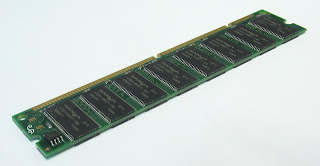
For desktop computers memory looks like the picture on the right. There are a few different form factors (sizes and shapes), and sometimes the modules are covered with a heat sink, but the picture gives you the general idea.

Memory

Memory is shorthand for random access memory or RAM. It can be confusing, because your hard drive is also a form of memory, as is your USB drive, memory stick, SDD, etc. Generally the term memory is used for the RAM in your computer, but context is key to being sure.

RAM stores the data your processor is using at the moment. It's relatively small, but fast. That's important, because anytime your processor is waiting for the data it needs, your computing is stalled.

In the overall data storage scheme, RAM falls between cache and the hard drive.

Your hard drive stores all of your software and most of your data (documents, music, etc.). Hard drives are big, but they're relatively slow so they're not good for holding data your processor needs instantly.

Cache is a small amount of memory built right into your computer's processor. It keeps things moving by putting the most urgently needed data right at your processor's fingertips.

RAM holds the data that the processor has called up from the hard drive, but hasn't been loaded into cache. Like the cache, it's volatile, meaning it loses all the data when you turn off your computer. Like the hard drive it can hold a fair amount of data. (OK, the "like the cache" sentence is dead on. The "like the hard drive" sentence is a bit of a stretch, but it kept some symmetry to the paragraph. You may have a couple of gigabytes of RAM, but probably more than a hundred gigabytes of hard disk capacity).

Memory modules almost always slide into slots on your computer's motherboard. It's simple and obvious on most desktop motherboards. On laptops it can be anywhere from simple to a freaking nightmare. I once used a computer than had its memory soldered onto the motherboard and no room for any additional modules. I like to think it was a one-time mistake that no computer maker has ever repeated.

In this article, by the way, we're talking about computer memory. That's important because memory with similar names and shapes shows up in printers and other devices and it can have some important differences.

Here's a short field guide to memory:

Form Factor is IMMportant
If you want to add memory to your computer, the first complication you'll encounter is the type of module -- form factor in industry jargon. To make identification easier(?) the various typ0es all have similar names, like DIMM, RIMM, SIMM and so on. Actually, they all sound alike because they're all memory modules (MM) and the chips on them are inline (I), so it's the first word (letter) that distinguishes them.

DIMM
DIMM stands for Dual Inline Memory Module. It's the most common memory around these days. DIMMs are the next step after 9you guessed it) SIMMs, or single inline memory modules. Why the change? Computer processors went from 32-bit data paths to 64-bit data paths. That's twice the capacity to access data and DIMMs let your 64-bit processor get all of the data from a single chip. A 64-bit processor connected to SIMMs would have to read two separate memory module at the same time.

DIMMS have 168 pines running along the bottom, separated into two groups of 84. There's a notch in between the two sets. The chips are mounted above the pins and they're separated by a gap on the board. DIMMs can have two groups of 4 chips or one group of 5 and oen group of 4, for a reason we'll get to in a moment.

SO-DIMM
Small-outline dual inline memory modules are -- you see this coming -- smaller than regular DIMMs. These show up in laptops where they help keep the overall package small. The price of that extra smallness is, we'll, price:they cost more. Be careful, though, because your laptop might use an even smaller module.

Micro-DIMM
Smaller yet, and even more expensive.

SIMM
If you need to add SIMMs to your computer step back and take a look at the big picture. I'll be blunt: you're computer's getting up there in years and it might not be worth the investment.

But I know how it is with the old workhorse that saw you through those pre-XP Windows days and never gave up no matter how many blue screens of death it had to endure. And besides, SIMMs are dirt cheap, even free if you don't mind digging through a dumpster.

Your SIMMs have 72 pins running along the bottom (OK, it could be 30 but if it is, you need to consult with a Hospice).

RIMM
Rambus inline memory modules are notable because they don't fit the profile, literally. They were developed by a company called Rambus and they have a proprietary design. My impression is that they don't come in computers anymore, they're used in other electronic devices that need memory.

Some Tech Terms
  • Parity, non-parity and ECC (error checking and correction) all refer to ways of checking for errors in a stream of data, or not. Parity and ECC add a bit (literally) of data to the stream to detect errors. For the parity process it means adding a little more memory (on some DIMMs it means a total of 9 chips -- one group of 5 nd another of 4). The ECC process just slows the memory down a tiny bit, not enough to wipe out the extra efficiency of eliminating errors. Non-parity memory doesn't check for errors.
  • Buffereing is a way to make the exchange of data with the processor more efficient.

So What's in Your PC?
OK, now you know what kinds of memory are out there. But what's in there (your computer, I mean)? Well, you might remember seeing the time of RAM on the box. You could take apart your computer and look at the modules (which is the right thing to do before you invest in any more modules)?

But if you want to find out right now in kind of a cool way, you can download
some free software that will examine your computer and report back. It's called CPU-Z. You don't have to install CPU-Z, just download it, unzip it and double-click on cpuz.exe. A little windows will open up. If you click on the "Memory" tab at the top, you'll see what kind of RAM you've got. (If that last sentence sounds a little in-your-face, it's because it is. RAM matters).

It won't take but a second for you to see that there's an opportunity to waste some time here. CPU-Z can tell you a lot about your system -- even more if you read the readme file that comes with it.

But before you wander off, the tab next to Memory is important too. It's labeled "SPD." Remember that your motherboard has slots for memory -- probably 4 of them. Since memory modules come in different configurations, e.g. 512 MB, 1 GB, etc., you have to figure out if you have any open slots. The SPD tab will tell you how many slots you have and what's in each of them, if anything.

If your computer currently as 2 GB of memory, it could be a 1 GB module in slot 1, a 1 GB module in slot 2 and then 2 empty slots.

You could add a GB by slipping a new module into the third slot. But if your 2GB comes from 4 512 MB modules taking up all 4 slots, it's more complicated. Most online memory stores have help in figuring out the best configuration. Just Google "memory."

Tuesday, August 07, 2007

Great WordPress Widgets: Navigation

WordPress is amazing; of course it's great for blogging, but it's also a terrific content management system. One catch, though, is that it's not really set up for navigating static pages. That's why the NRS Folding Pages Widget is such a find. It's easy to set up, easy to use and fairly flexible. You can download it here.

Heading Home

Ever surf through a website and have a hard time finding your way back home? It's a pain. And it's a real joy when you hover over the site's logo and realize it's a link that'll take you home.

If the logo on your website isn't a link home, it's an easy thing to add. This blogger feels so strongly about it she's written an entire tutorial.

Thursday, June 28, 2007

ToolTips

By the way, if you put your cursor on the Start Button and do nothing -- no right clicking, no left clicking, in fact take you hand off the mouse just to be sure -- something will happen. A little yellow box will pop up with the words: "Click here to begin."

It's a ToolTip. Frequently in Windows letting your cursor hover over a button will call forth a ToolTip that tells you, or at least hints at, what clicking on the button would do.

Sometimes a TootTip is very specific, like "Open new side note" (for the OneNote icon in the System Tray). Sometimes it's a little more general, like "Mozilla Firefox" (for an icon on the QuickStart Menu). Sometimes it's downright vague (begin what?). In any case, ToolTips are there to help and they assume you need help when your put your cursor on something and hesitate before clicking.

You may have noticed that I said ToolTips pop up frequently. Why not always? Or never?

Well if it were never, this would be a silly post. OK, sillier post. But why not always? Two reasons. Outside of the operating system itself, I think it depends on the program. If the programmer included ToolTips, they happen. If she didn't, they don't.

That explains why they either exist or don't for a particular button. But you may notice that, on the Start Button for example, the ToolTip will pop up sometimes and not others. I've never figured out a pattern. Of course there's a limit to how much of my life I'm willing to spend hovering a cursor over a button in Windows.

It could be that once you click on the Start Button a few times Windows assumes you've figured it out and don't need a ToolTip any more. If that's the case, I'd like the ToolTip guy to talk to the Clippy guy.