Pages

Saturday, February 06, 2010

Replacing the LCD on a Sony VGN-T150


I have a Sony VAIO VGN-T150 that I inherited from my wife when she broke the screen. I replaced the screen and used the computer for a couple of years. Then I broke the screen or, more specifically, United Airlines did.

Now that I'm replacing it again, I thought I'd post some helpful information. Even if you don't find it helpful, I will the next time I need it.

Wednesday, October 07, 2009

Trying AIR Again

OK, so it seemed like it was easy to install AIR, but after installing one application I couldn't get it to install  others.

Turns out I used the right process for 32-bit processors, but I'm using a 64-bit processor.  Getting AIR to work with a 64-bit system takes a little more work.

Fortunately, I found some help at OSSRemblings.  It's actually step-by-step instructions for installing an AIR app called TweetDeck, but it starts with all the steps to install AIR on 64-bit Linux systems.

I'm planing to install TweetDeck anyway.
Reblog this post [with Zemanta]

Monday, October 05, 2009

Leap into AIR with Ubuntu and Linux

Installing Adobe Air in Ubuntu Linux is simple.

You download the installer from here (it's called AdobeAIRInstaller.bin and it's hosted on http://get.adobe.com/air/).

Gov to wherever you downloaded it and make sure you have permission to run it:

In Nautilus right click on the file
  • choose Permissions
  • Check the box that says Allow executing program as a file

In the terminal
  • chmod +x AdobeAIRInstaller.bin

Then all you have to do is run the installer program:

In terminal:
sudo ./AdobeAIRInstaller.bin

Accept the licensing agreement and it should install just fine.

AIR stands for Adobe Integrated Runtime.  "Runtime" here means an environment for running applications.  Adobe's runtime environment let you run on your desktop applications that you normally run from the web using your web browser.

It handles programs written in Flash, Flex, JavaScript and other normally web-based scripting languages. These are sometimes called Rich Internet Applications.

Wednesday, September 02, 2009

What's inside your computer? Find out with Ubuntu

Ever wonder what, exactly, is inside your computer? The specific network card? The type of host controller?

Finding out isn't always just curiosity; getting the details of your computers innards can help you get the right drivers and tweak the hardware for peak performance.

In Ubuntu (or any flavor of Linux), there's an easy way to get the scoop. It's a terminal command called lshw or a graphical program called lshw-gtk.

If you don't have them installed, you can them quickly with Synaptic, or with the terminal commands:
sudo apt-get install lshw
sudo apt-get install lshw-gtk
Once you've installed them, you can open either from the terminal:
sudo lshw
or
gksudo lshw-gtk
Use sudo (or gksudo) because you need root privileges to get all of the information.

For a quick look, the command-line version is a little easier. The lshw commans gives you the full story, every device, model and setup.

If you'd prefer a summary, use:
sudo lshw -short
It's a little easier to digest. There are some other options at the end of the post.

The graphical program is nice, but it takes a little getting used to. When you first run it, it will open with just one description. In my case, it said "Notebook" in the left column and had a brief (really brief) description in the right-most column.

To get more information, look for little arrows and words in boldface. Double clicking on them opens up more details. When the words are in regular type, you've hit the last level of detail. Just click on the words to get the full description.

I copied the output of lshw into Tomboy and created a little wiki with all of the hardware information. Now when I need some details, I can just click through the notes.

With the command-line version, you can tailor the output to fit your needs.

Monday, August 03, 2009

Working with PDF documents in Ubuntu

PDF files can be a pain in the butt. The format is fantastic for keeping the layout of a page together, but irritating if you want to search the document, copy text or read on a small screen (especially a smartphone like the Nexus One).

There are a few Linux tools that can make working with PDFs a little easier.

Ubuntu comes with Evince, which it simply calls "Document Viewer." It doesn't by default show up in the Applications menu; it just opens when you double click on a pdf file. (If you want to open it without clicking on a pdf, just open application launcher (Alt-F2), type "evince" without the quotes, and click Run).

Evince is quick and it lets you search, print and copy from a pdf document, but its copy function has some limitations.

To copy, you highlight text line by line. That's fine for simple documents, but it can cause problems if the document has columns or other odd formatting.

Rather than just getting the lines from one column, you'll often also get the adjacent lines from the next column. Sometimes you'll get lines from an entirely different part of the document (I assume that has something to do with the way the pdf was created).

The great thing about Linux is that you have options to make working with pdf files easier.

Thursday, July 30, 2009

Trimming the Context for Firefox Context Menus

Extensions make Firefox a lot more useful. For some extensions, it's especially useful to reach them through the context menu that pops up when you right-click with your mouse.

That usefulness, though, can get eroded if you wind up with too many options on the context menu. That happened to me. I wound up having to right click, then scroll through the context menu to find the tool I needed. That's a pain.

The problem is that Firefox extensions often add themselves to the context menu whether they're useful to you there or not.

The solution? Edit the menu. How? With another extension.

If that sounds counter-productive, consider this: the extension you'll use doesn't add itself to the right click menu. In fact, it doesn't even add itself to the Firefox Tools menu. It just sits in the Add-ons dialog box waiting for you to want it.

The extension is called, appropriately, Menu Editor. You can get it here. See Extending Firefox if you need help.

Once it's installed, go to:

Tools > Ad-ons > Menu Editor > Preferences

There's a drop-down menu to select the menu you want to edit. If you choose Main Context Menu, you'll see all of the items that can be on a context menu.

I say "can" be on a context menu because there are actually a few different context menus depending on where you are when you right click. That's the "context" part of "context menu."

You'll get the significance of that when you see how many menu items there are. You probably don't see them all on any one menu, but they're lurking.

This makes designing your menus a little hit or miss. I hid a couple of items that I later added back on.

Tip: Before editing your menus, right click on a web page and see which of the menu items are useful. Do it in a few different contexts, like on white space, with text selected, on a tab, etc. Make a list of the items you want. That way, once you're in Menu Editor, you'll be able to quickly hide the items you don't want. It's amazing how many items wind up on the menu. I didn't remember some of them until I started editing the menu.

Reblog this post [with Zemanta]

Monday, July 27, 2009

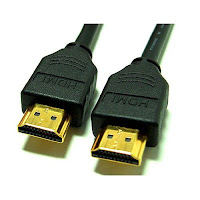
HDMI Hype

My son and I were at Best Buy the other day and saw an HDMI cable for $150. He turned pale.

You see, he's been trying to convince me to get a new, high-definition computer monitor, partly by saying we could also use it as a TV. The $150, he noticed right away, was more than the cost of the monitor he wanted.

Is that possible? The cable costs more than the monitor? No, it's not.

In fact, we'd been home for less than 10 minutes when he found a comparable cable online for less than $40. That's a big difference -- more than $100.

Now, Best Buy would probably argue that its expensive cable is far superior than the cheaper cable. Some unfortunate suckers will probably believe it. CNET doesn't:

CNET strongly recommends cheap HDMI cables widely available from online retailers instead of the expensive counterparts sold in your local electronics store.
That's right at the top of CNET's "What HDMI Cable Should I Buy" page. CNET says it's tested a lot of different cables, from brand name to generic, and hasn't found a bit of difference in quality. It calls high-priced cables a "rip-off" and says you shouldn't pay more than $10 for a six-foot cable.

Popular Mechanics came to the same conclusion after its own eyes-on testng. Gizmodo came to a more nuanced conclusion based mainly by comparing the outrageously-priced Monster cables to cheap ones. Still, the testers at Gizmodo suggest starting with a cheap cable and upgrading later, if you think it's worthwhile.

The testing mirrors my experience with other kinds of cables and accessories. I've used cables to extend USB, monitors, keyboards, mice and more, and the expensive ones haven't performed any better than the cheap ones. I'm sure there are limits, but I haven't found them yet.

I ordered an amazingly cheap USB car charger from a company in Taiwan. Auspiciously, it arrived early. Not so auspiciously, the package read: "Universal great authority to you everywhere." For less than $2 it's hard to complain about the translation.

Inside the package was a cigarette lighter plug with a USB jack on it, a cable with a USB plug on one end and a generic power jack on the other, and an adapter to convert the generic jack to a Nokia power plug. It all seemed a little flimsy, but it's outlasted the phone by a couple of years now and still going strong.